Exam Paper Builder: Make Urdu and English Papers in Minutes
A step-by-step guide to making a print-ready Urdu or English test paper in minutes, from first setup to reusing it next term.
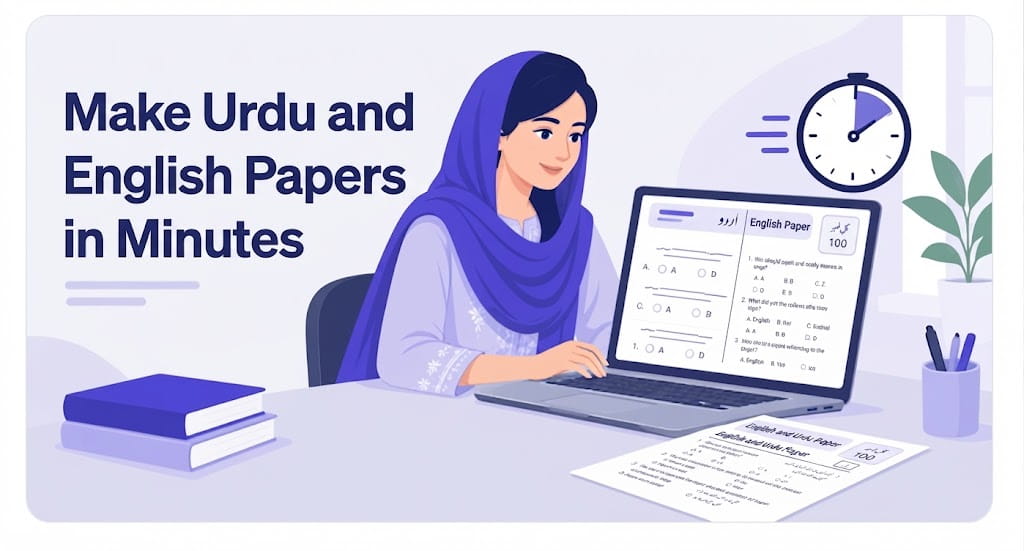
Every exam season it is the same story. The syllabus is finished, but the question paper is not. You type Urdu in Word and the letters break, the MCQ options slide out of line, and a page that looked fine on screen prints across two sheets. An exam paper builder fixes this by doing the layout for you. You pick the questions, it arranges them on a clean page, and what you see in the preview is exactly what comes out of the printer. This guide shows the full process step by step, whether you are making a class 5 Urdu test or a matric Science paper.
What an Exam Paper Builder Does That Word Cannot
Word is made for letters and reports, not for test papers. Every table, every set of options and every answer line has to be drawn by hand, and one small change can push the whole page out of place. A paper banane wala tool made only for this job has the hard parts already solved:
- Urdu and Arabic that print correctly. Text runs right to left in a Nastaliq font, so your paper reads the way students are used to seeing it in their books.
- A preview you can trust. Choose A4, Letter, Legal or A3, in portrait or landscape. Page breaks are shown before you print, so there are no surprises at the photocopy shop.
- 13 question types, ready to use. From MCQs and matching columns to abacus and handwriting tracing, you add the content and the layout is done for you.
- Your papers stay saved. Every paper is kept in your account, so next term you start from last term's paper instead of a blank page.
N&P Builder works in English, Urdu and Arabic, and you can use it in any browser on a computer or a phone.
Step 1: Set Up Your Paper
Create a free account and start a new paper. Before adding any question, set the basics so the preview matches the final print:
- Choose the language. Pick Urdu for an Urdu or Islamiat paper and the page turns right to left. Pick English for English, Maths or Science.
- Choose the page size and direction. Most schools in Pakistan print on A4 portrait. Landscape is useful for wide matching columns or vocabulary lists for small classes.
- Type the heading. Class, subject, total marks and time go at the top, the way every question paper starts.
- Add your school's branding. On packages that include branding, your school logo and footer print on every page automatically.
Step 2: Add Your Questions Section by Section
Build the paper the same way you would plan it on paper: the objective part first, then short and long questions. Add each section as a question type, then type or paste your questions into it.
- MCQs: options are labelled (الف) (ب) (ج) (د) on Urdu papers, just like the board papers students practise with.
- Fill-in boxes and word bank: give students a list of words and boxes to write the right one in.
- True/false: quick marks for revision tests and monthly tests.
- Matching columns: two columns side by side, with no table to draw by hand.
- One-line answers and lined answers: short questions get a single line, and long questions get lined space for writing.
For younger classes there are question types that are very hard to make in Word. Here is a quick guide to what fits where:
| Class and subject | Useful question types |
|---|---|
| Nursery and Prep, English or Urdu | Handwriting tracing, word bank, put in order |
| Class 1 to 3, Maths | Abacus, vertical sums, fill-in boxes |
| Class 4 and 5, English | Two-column vocabulary, word bank, matching columns |
| Class 5 to 8, Science | MCQs, true/false, fill-in tables, one-line answers |
| Matric, any subject | MCQs, one-line answers, lined answers |
Step 3: Check the Preview and Print
This is where an exam paper builder saves the most time. The preview shows the paper exactly as it will print, with page breaks marked. Before you print, check three things:
- No question is split between two pages. If one is, reorder the questions or try Legal size to fit more on each page.
- The marks add up to the total written at the top.
- Urdu words look right, especially inside MCQ options and matching columns.
When everything looks right, print it. The printed page matches the screen, so you can send one master copy for photocopying with confidence.
Step 4: Reuse Your Papers Next Term
A saved paper is worth more than a printed one. Because every paper stays in your account, you can:
- Duplicate last term's paper and change only the questions that need changing.
- Search and filter your saved papers to find the one you need in seconds.
- Import a question bank from Excel or CSV, so the questions you typed over the years are not wasted.
- Export any paper back out and back up everything.
Over a year or two this becomes your own question bank, and a monthly test takes minutes instead of a whole evening.
Let AI Draft the Paper for You
If you want a head start, the AI builder can write the first draft. Connect your own AI key from a provider such as OpenRouter, OpenAI, Claude or Gemini, then describe the paper in plain words, for example: Class 5 Science, chapter on plants, 10 MCQs, 5 true/false and 3 short questions. The AI drafts the paper, and you edit it before printing.
Always read the draft carefully. AI can get facts wrong or go outside your textbook, so treat it as a helper, not a replacement for your own judgement. You will find more guides like this for teachers on our blog.
Common Questions
Is the exam paper builder free to use?
Yes, there is a free plan to start with. If you need more, paid packages can be bought through JazzCash, Easypaisa or bank transfer.
Can I make a question paper on my phone?
Yes. N&P Builder works in any browser, and you can install it on your phone like an app. Long papers are more comfortable on a computer, but quick tests are easy on mobile.
Can I use questions I already typed in Excel?
Yes. Import them from an Excel or CSV file, and they are ready to use in any new paper.
Your next test paper does not have to take all evening: make one free and print it in minutes.